Showing posts with label Slides. Show all posts

Saturday, January 16, 2016

Google Drawings and the First Thanksgiving


f6ad3dbd4633280cfd0c71f002964817.jpg


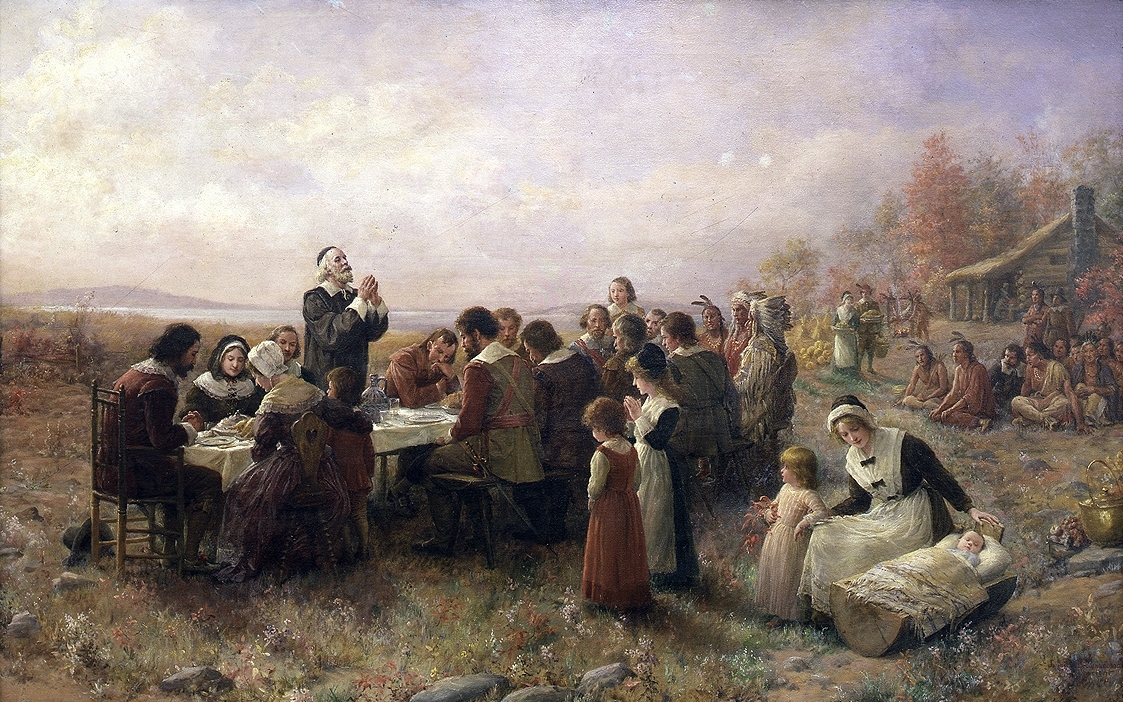
Back in November my fourth grade was studying early america and integrated the unit with the first Thanksgiving. Students in Mrs. Wolfson’s class learned about the lifestyles of the Wampanoag Native Americans and the Pilgrim settlers from the Scholastic First Thanksgiving site and took notes using this graphic organizer. Students then conducted an analysis of the painting “The First Thanksgiving 1621” painted by J.L.G. Ferris. This included zooming into the painting to find relevant details and make inferences.


Finally, the class deconstructed the painting to make a comic strip of the historic event. Students were taught to create vignettes of the painting in Google Drawing. Using their research, students wrote dialog from the different perspectives in the painting.


Google Drawings became the perfect format for this activity. Including research, the activity took three days. Student cartoons were saved as jpgs and added to the class Google presentation below.


Changing Gears
I started the project in Pixton. I was looking for a Comic Life alternative to use with our aging 4th grade chromebooks. It didn’t work out so well. Perhaps I could have structure the activity better, but students obsessed over customizing the characters and building their scenes. Nothing quite fit their research despite many distracting choices and the student emphasis was wrong. To make matters worse, the interface was complicated and didn’t work smoothly.  Older students with more powerful laptops might have a better time.


It went so poorly, in fact, that we changed direction mid-lesson. We scrapped Pixton and spontaneously created and shared a Google Drawing that featured the painting they had been studying. It wasn’t fancy, but it was effective and efficient. The tool “got out of the way” and let students focus on their storytelling.


What I’d Like to Try Next Time


There is some controversy about the authenticity of J.L.G. Ferris’ painting “The First Thanksgiving 1621.” I think it would be interesting to discuss whether this depiction is accurate with our kids. This article from http://historyofmassachusetts.org/ could provide an interesting counterpoint to the Scholastic website, although I think it should be tweaked to be more accessible.  It might also be useful to compare the Farris account with the “First Thanksgiving at Plymouth” by Jennie A. Brownscombe.


Google Drawings saved this project. The deceptively simple interface allowed me to concentrate on the “what” and the “why” instead of the how. I’m looking forward to revisiting the First Thanksgiving next year.

Sunday, October 25, 2015

Animated Student Portraits Using Biteable


Sometimes things just line up. About a month ago I got an email from one of my 5th grade teachers asking for help. Her students had been learning how to ask good questions and interviewing each other.  She wanted a quick way to present this information. We all know that time is at a premium, some projects have to be quick. It just so happened that I read about Biteable that weekend. Kismet.

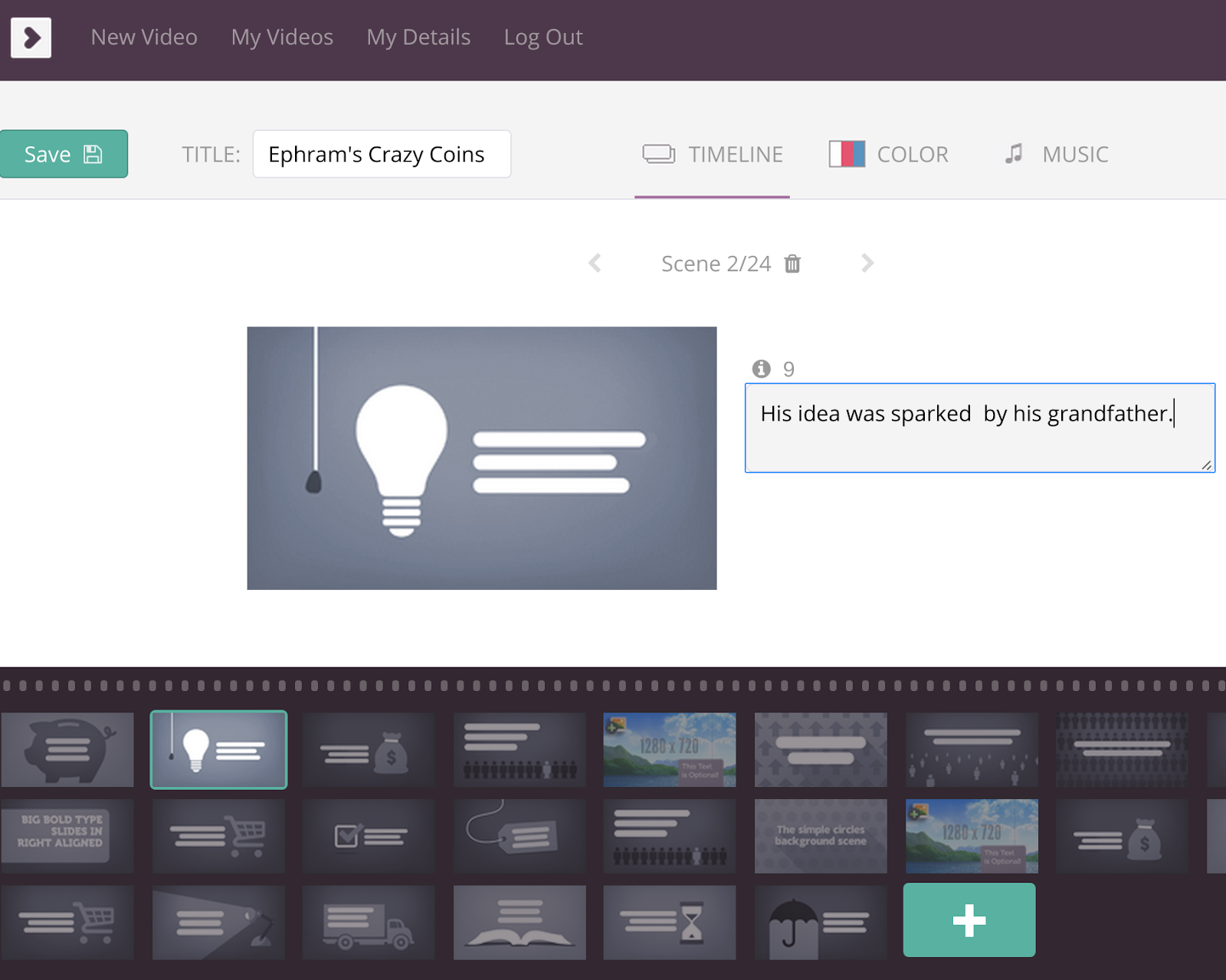
Biteable is a site that provides a library of quick animated slides. Users decide on the slides that best communicate their message and pair them with short strings of text. The slides are well designed and the brevity of the text (50 characters per slide) reinforces the “show, don’t tell” philosophy of design. Students also choose music to accompany the movie. The end result is something students can be proud of.


We created a single account using the teacher’s email and a generic password. Each student used this username and password to sign into the account and create a Biteable for their interview. The shared account did a few things:
  • The teacher had access to all the biteable movies
  • The account was connected to the teacher’s YouTube account, something that isn’t turned on in our student sub-organization
  • When a movie is ready, each student sends an email via Biteable to the teacher, giving the teacher control over when the movies are “published”
  • The shared account meant students had to respect each other’s work. This reinforced digital citizenship and our class rose to the occasion.

Students started by referencing the slide library and planning their movie with a storyboard graphic organizer. The graphic organizer was created in a Google Drawing and can be printed or used digitally.  The storyboards helped students think purposefully about their slide choices and the logical flow of the movie.

The text constraint of 50 characters per slide also presented an interesting teaching point. Students had to synthesize their notes into the most important ideas. Even then, ideas often needed to be stretched across slides. Students were taught to do this smoothly by using sentence connectors. Another lesson developed from the students’ sentence starters which tended to use a pronoun or the name of the child.  Students revised their work by placing the adverb phrase or predicate first.

The finished products are beautiful animated portraits of the interviewed students. Because the process was so easy, the focus of instruction was on craft and not the tool. It was also efficient; students typically finished the first draft of their movie in two days and took another two days to revise. I’m looking forward to using Bitable again, let me know how it goes if you try it with your class!

Tuesday, June 2, 2015

A Google Slides Student Museum


Back in March I had the good fortune of sitting in on +Caren Macconnell’s Google Summit workshop on Choose Your Own Adventure Using Google. Caren did a great job and really got my wheels turning - you can do a lot with this kind of interactivity and it shines in the classroom.


In the past I've used a wiki to create interactive stories like this. It worked pretty well but graphics were more complicated than they needed to be and students couldn’t work on the same page at the same time. Google Slides is a much more flexible and user-friendly tool.

Creating non-linear links or buttons in a Slides presentation is a snap. Just select the text or shape that you want to link to another slide, click the link button, then select the destination slide. This process is even easier if you title the slides beforehand.

This came in handy recently after a local artist visited one of our second grade classrooms. Caren shared a museum template during her Summit workshop that becomes a great showcase for student work and reflections. This was the inspiration for the Museum at QR Slide deck embedded in this post.


Like Google Drawing, slides is an under appreciated tool. I think Slides is sometimes mistaken as limited because it’s easy to use. Don’t fall for this trap, nothing is further from the truth.